File Viewer
Open a whole folder and browse photos, RAW, PDF, HWP, Word, Excel, CAD drawings, video, and audio in a grid or one by one — files never leave your device
Drop a folder or files here
JPG · PNG · WebP · GIF · BMP · AVIF · SVG · HEIC · PSD · AI · TIFF · camera RAW · PDF · HWP · Word · PPT · Excel · DWG/DXF · MP4/WebM/MOV/MKV/AVI/WMV · MP3/WAV/WMA/AIFF · TXT/MD/CSV/JSON/HTML — subfolders included
This browser doesn't support the folder-open dialog, so the standard folder picker is used. Files are read only on your device.
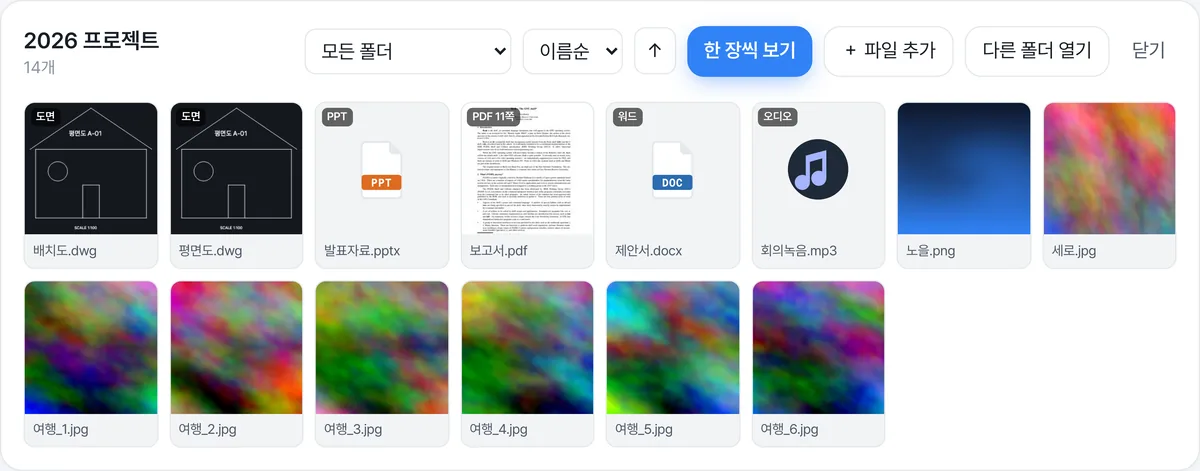
Open a whole folder, skim photos and documents in a grid, and flip through them one at a time on a large stage. Beyond ordinary images it shows HEIC, PSD and AI, TIFF, camera RAW (embedded preview), PDF (page by page), Korean HWP (page by page), Word, PowerPoint, and Excel, CAD drawings (DWG, DXF), MP4, MKV, AVI, and RMVB video, MP3, WMA, and APE audio, plus email, ebooks, archives, certificates, fonts, 3D models, and DICOM, all from one folder. Zoom, rotate, slideshow, full screen, and printing are supported, and files are never sent to a server.
What you can do
- ✓Open a folder (with subfolders), drag and drop, or select files
- ✓Grid view plus single view with a filmstrip; sort by name, date, or size; filter by folder
- ✓Zoom, pan, rotate, 1:1, fit, keyboard shortcuts, slideshow, full screen
- ✓Decodes HEIC, PSD, AI, and TIFF; RAW uses the camera's embedded preview; PDF and HWP page through; Word, PPT, and Excel open in a document panel; drawings render as vectors; video and audio the browser can't open are converted on your device and played (next file when a track ends)
- ✓Photos, camera RAW, PDF, HWP, Word/PowerPoint/Excel, CAD drawings, video (MKV, AVI, RMVB included), audio, email, ebooks, archives, certificates, fonts, 3D, DICOM — 205 extensions, all processed in the browser with no upload
How to use
- 1Click Open folder, or drop a folder or files
- 2Skim the grid and click one
- 3Move with ← → or the arrows, zoom with the wheel, F for full screen
Supported formats · JPG · PNG · WebP · GIF · BMP · AVIF · SVG · HEIC · PSD · AI · TIFF · RAW such as CR2/NEF/ARW/DNG · PDF · HWP/HWPX · DOCX · PPTX · XLSX/XLSM/XLS/XLSB · ODS · Numbers · DWG · DXF · MP4 · WebM · MOV · MKV · AVI · WMV · TS · MP3 · WAV · M4A · OGG · FLAC · WMA · AIFF · TXT · MD · CSV · JSON · HTML · source code · ZIP/TAR/TGZ · SRT/VTT/SMI · EPUB · TTF/OTF/WOFF · Pages/Keynote/Sketch previews · ICO · EML/MSG email · ICS calendar · IPYNB notebooks · DOC/RTF text only · DICOM medical images · STL/OBJ 3D · PEM/CRT/CER certificates · DOCM/DOTX/PPTM/PPSX/XLTX · CBZ/APK/JAR · RM/RMVB/DivX · APE/MKA/M4B/WV/TTA · NFO/DIFF/TEX · SVGZ · TTC · DER certificates
Viewer pages by format
Popular formats have their own page. Whichever page you are on, files of any other supported format open just the same.
- View HEIC photosHEIC·HEIF·HIF
- View PSD filesPSD·PSB
- View AI filesAI
- View TIFF filesTIF·TIFF
- View SVG filesSVG·SVGZ
- View camera RAW photosCR2·CR3·CRW·NEF…
- Play MKVMKV
- Play AVI and DivXAVI·DIVX
- Play RMVB and RMRM·RMVB
- Play WMVWMV·ASF
- Play FLVFLV
- Play TS and M2TSTS·M2TS·MTS
- Play MPG, MPEG, and VOBMPG·MPEG·MPE·VOB
- Play WMAWMA
- Play APE and lossless audioAPE·WV·TTA·MPC
- Play AIFFAIFF·AIF
- Open EML and MSG emailEML·MSG
- View ICS calendar filesICS
- Read EPUB ebooksEPUB
- View Jupyter notebooks (ipynb)IPYNB
- Open legacy Word (.doc)DOC
- Open RTF filesRTF
- Open NFO filesNFO
- Open Numbers and ODS filesNUMBERS·ODS
- Preview Pages, Keynote, and SketchPAGES·KEY·SKETCH
- View DICOM medical imagesDCM·DICOM·DIC
- View STL and OBJ 3D modelsSTL·OBJ
- Open ZIP and TAR archivesZIP·TAR·TGZ·GZ…
- Read CBZ comicsCBZ
- View certificate files (PEM, CRT, CER, DER)PEM·CRT·CER·DER…
- View SRT and SMI subtitlesSRT·VTT·SMI·SAMI…
- Preview font files (TTF, OTF, WOFF)TTF·OTF·WOFF·WOFF2…
Word, PowerPoint, Excel, HWP, and CAD have their own document viewer pages.
Open a whole folder, skim photos and documents in a grid, and flip through them one at a time on a large stage. Beyond ordinary images it shows iPhone HEIC, Photoshop PSD and Illustrator AI, TIFF, camera RAW (the preview the camera embeds), PDF and Korean HWP page by page, Word, PowerPoint, and Excel in a document panel, CAD drawings (DWG, DXF) as pictures, MP4, WebM, and MOV video, and audio such as MP3 and WAV, all from one folder. Zoom, rotate, slideshow, and full screen are built in, and files are read only on your device, never uploaded.
How to use it
- 1Click Open folder, or drop a folder (or several files) onto the page. Select files picks individual files. A checkbox controls whether subfolders are included.
- 2Skim the grid and click one. Sort by name, date, or size, or filter by folder.
- 3Move with ← → or the arrows, zoom with the wheel or a pinch, rotate with R, start a slideshow with Space, go full screen with F.
When it comes in handy
Picking through hundreds of photos copied from a camera or phone, looking through old pictures on an external drive or USB stick, or checking images in a folder on an office PC where nothing can be installed.
The built-in photo apps on Windows and macOS often open one file at a time or insist on importing into a library; this viewer just shows whatever folder you point it at.
Three ways to open a folder
In Chrome and Edge, Open folder shows a folder-picker dialog. It asks for read-only access, and the permission ends when the tab is closed. Safari, Firefox, and mobile browsers fall back to the standard folder picker, which reads the folder's file list up front, so large folders take a moment.
You can also drag a folder from Explorer or Finder onto the page. Mixed folders and files are fine; only images are picked out. Up to 5,000 images are read per folder; beyond that, open subfolders separately.
What can it display
JPG, PNG, WebP, GIF, BMP, AVIF, and SVG are drawn directly by the browser. HEIC is converted to JPEG, PSD and AI show the composite image stored in the file, and TIFF is decoded pixel by pixel (fax TIFFs and multi-page TIFFs show the largest page).
Camera RAW (CR2, CR3, NEF, ARW, DNG, RAF, ORF, RW2, and more) can't be developed in a browser, so the viewer extracts the JPEG preview that almost every camera embeds. It is often below full resolution and uses the camera's default rendering, so treat it as a culling view. PDFs and Korean HWP/HWPX can be paged through with ↑↓ or the ▲▼ buttons (one document stays open and pages render on demand, so hundreds of pages stay light), and MP4 (H.264), WebM, and MOV play in the browser's player. Containers browsers can't open (MKV, AVI, WMV, TS, FLV) are remuxed or converted on your device when opened, and WMA/AIFF audio is converted to MP3 (900 MB limit).
CAD drawings (DWG, DXF) are read the same way as in the CAD viewer and shown as a picture on a dark background, so zoom and rotate work like a photo (AutoCAD 2000 and later DWG). Hiding layers and changing dates happen in the CAD viewer via Open in dedicated viewer. Audio (MP3, WAV, M4A, OGG, FLAC) shows a note icon instead of a preview and plays in the browser's player when opened; when a track ends the viewer moves to the next file, so a folder plays like a playlist.
Text files open in place too. Notes (TXT, LOG) show with line numbers, Markdown (MD) renders as a formatted document with headings, tables, and code, CSV and TSV become a table, JSON is pretty-printed, and source code (PY, JS, TS, JAVA, C, SQL, and more) gets line numbers. Saved web pages (HTML) preview in an isolated frame with scripts blocked, and a Source tab shows the code. Legacy EUC-KR notes decode correctly, and logs over 4 MB show their first part.
ZIP, TAR, and TGZ archives are listed without extracting; Expand and view appends the viewable files to the list and each is extracted only when viewed (up to 300 MB each). Subtitles (SRT, VTT, SMI, ASS) show as a table of times and lines, and EPUB e-books open with a cover thumbnail, table of contents, and chapter text. Fonts (TTF, OTF, WOFF, WOFF2) show a sample thumbnail set in the font, plus name, glyph count, Korean support, and sample lines at several sizes.
Word, PowerPoint, Excel, and HWP in the same place
Word (DOCX) is shown with its page layout, PowerPoint (PPTX) as slides stacked vertically, and Excel (XLSX, XLSM, XLS, XLSB), OpenOffice ODS, and Apple Numbers as sheet tabs and a table. These are document panels rather than images, so zoom uses the +/- buttons and there is no rotation. HWP is rendered as page images and paged like a PDF.
Font substitution and complex formatting can make documents look different from the original application, and legacy binary .doc/.ppt files and password-protected documents can't be opened. For editing, printing, or saving as PDF, click 'Open in document viewer' in the toolbar and the file is handed straight to the document viewer.
Light even with many photos
Grid thumbnails are generated small and only for what is on screen, so the browser doesn't decode every original even with hundreds of photos. The large view preloads just the two images on either side, so paging stays smooth.
HEIC can't be drawn by browsers, so it is converted to JPEG when shown, which makes the first display of a HEIC folder a little slower. For folders you'll revisit, converting once with the HEIC Converter tool is more convenient.
Viewing controls
Zoom with the wheel or two fingers and drag to pan. Double-click toggles between fit and 1:1. R rotates the view in 90° steps without changing the file. The 🖨 button (Ctrl/Cmd+P) prints the file you're looking at: photos and drawings fit one page, PDF and HWP print every page, documents and text print as shown. The slideshow runs at 2, 3, 5, or 10 seconds and loops back to the first image after the last.
To see or remove capture details (date, camera, location), continue with the EXIF Viewer; to crop or adjust brightness, use the Image Editor. This viewer never deletes or renames files.
Frequently asked questions
Are photos uploaded to a server?+
No. Folder reading, thumbnails, and display all happen inside your browser; photos never leave your device.
Open folder shows the standard file picker instead.+
Safari, Firefox, and mobile browsers don't support the folder-open dialog, so the standard folder picker is used. Chrome and Edge show the dedicated dialog.
Does it show HEIC photos?+
Yes. They are converted to JPEG when displayed. The first display is a little slower, so convert folders you view often with the HEIC Converter.
Can I delete or rename photos?+
No. The viewer is read-only. It never asks for write access to the folder, so nothing can be deleted by accident.
How many photos can it open?+
Up to 5,000 per folder. For more, open subfolders separately. Thumbnails are made only for what's visible, so hundreds stay light.
Does rotating change the file?+
No. Only the view rotates. To rotate and save the file itself, use the Image Editor.
Do RAW files show at full quality?+
The viewer shows the JPEG preview the camera embeds, which is often below full resolution. It's plenty for culling; developing needs a dedicated program.
How many PDF pages are shown?+
All of them. Page with ↑↓ or the ▲▼ buttons in the toolbar; ← → move to the next file. The grid badge shows the page count. HWP works the same way.
Can I edit Word or Excel files here?+
This is view-only (macro-enabled DOCM/PPTM/XLTM, templates DOTX/POTX/XLTX, and PPSX slideshows open the same way). Click 'Open in document viewer' in the toolbar and the file is handed to the document viewer for editing, printing, and saving as PDF.
Do MKV, AVI, RMVB video and WMA, APE audio play?+
Yes. Containers the browser can't open are prepared on your device when opened — video (MKV, AVI, WMV, TS, FLV, RM/RMVB, DivX, MPE, OGM) is first remuxed (a few seconds) and, if the codec isn't supported, converted with a progress indicator. Audio (WMA, AIFF, AMR, AC3, APE, MKA, M4B, WV, TTA, MPC) is converted to MP3. Files over 900 MB should be converted first with the Video Converter tool.
Can it show CAD drawings?+
DWG (AutoCAD 2000 and later) and DXF are shown as pictures. Pre-2000 DWG and damaged files won't open. To hide layers or change dates, use Open in dedicated viewer to hand the file to the CAD viewer.
Can I print from the viewer?+
Yes. In single-file view, click 🖨 or press Ctrl/Cmd+P to send the current file to the print dialog. Photos and drawings fit one page (as rotated on screen), PDF and HWP print every page, and Word, Excel, text, subtitles, ZIP listings, and font samples print as shown. Drawings print as black lines on white, and video and audio can't be printed. You can also choose Save as PDF in the dialog.
Can I add more files while viewing?+
Yes. Use the Add files button in the grid or the single-file view, or drop files or folders onto the page; they are appended to the current list. Files already in the list are skipped, and in single-file view the viewer jumps to the first added file. To switch folders entirely, use Open another folder.
Do 3D models (STL, OBJ) open?+
Yes. STL (binary and ASCII) for 3D printing and OBJ (vertices and faces) are drawn with browser 3D (WebGL): drag to rotate, wheel to zoom. Colors, materials, and textures aren't read — the model is shaded in one color. Up to 2 million triangles; GLB and GLTF aren't supported yet.
Can it show DICOM images from a hospital CD?+
Yes. Open a .dcm file to view X-ray, CT, or MR images with window/level sliders (CT has soft-tissue, lung, bone, and brain presets) and page through multi-frame files with ▲▼. Patient name and ID are never shown. Uncompressed and baseline-JPEG files display; JPEG Lossless, JPEG 2000, and RLE need codecs the browser doesn't have. Files without an extension aren't recognized by name.
What about legacy Word (.doc) and RTF?+
Only the body text is extracted (a Text-only badge is shown). Tables, images, and fonts can't be rendered because there is no browser renderer for these formats, and password-protected .doc files won't open. Legacy PowerPoint (.ppt) isn't supported.
What does it show for certificate files (.pem, .crt, .cer, .der)?+
Open signCert.der from a Korean NPKI certificate folder to check its expiry at a glance. The subject (CN, organization), issuer, validity period and whether it has expired, SAN domains, public key type (RSA bits or EC curve), signature algorithm, serial number, and SHA-256 fingerprint. Chain PEMs with several certificates are read in full, and DER (.cer) works too. Private key files never show the key value — only a private-key warning — and a CSR only gets a signing-request notice. PFX/P12 isn't supported yet.
Do Jupyter notebooks (.ipynb) open?+
Yes. Markdown cells render as formatted text, code cells show with their execution numbers, and saved outputs appear as text, images, tables (in an isolated frame), or errors (red box). Code is never executed.
Do email (EML, MSG) and calendar (ICS) files open?+
Yes. Email shows subject, from, to, date, the body (HTML in an isolated frame with scripts and remote images blocked), and the attachment list; Expand attachments adds the viewable ones to the list. Outlook .msg works the same. Calendar (.ics) files show events in start order. Nothing is sent to a server.
Do Pages, Keynote, and Sketch files open?+
The viewer shows the preview image stored inside the file (first page or slide). There is no renderer for the body, so a Preview badge is shown and the original app is needed to read or edit the content. Numbers opens as a table.
Can it preview font files (TTF, OTF, WOFF, TTC)?+
Yes (a TTC collection shows its first font). The grid shows an 'Aa 가나' thumbnail set in the font, and opening it shows the name, version, glyph count, and Korean support along with sample lines at 72, 40, 24, and 16 px. Type your own text to see it in the font. The font is registered only for this screen and never installed.
Subtitles and e-books?+
SRT, VTT, SMI, and ASS subtitles show as a table of times and lines, and legacy EUC-KR SMI decodes correctly. EPUB e-books show their cover in the grid and open with a table of contents and chapter text (images and styles included), rendered in a script-blocked frame.
What about ZIP and TAR archives?+
ZIP, TAR, TGZ (tar.gz), and ZIP-based APK, JAR, IPA, XPI, and WAR files are listed (name, size, date) without extracting. A CBZ comic opens straight into its pages in reading order. Expand and view appends the viewable files to the list under an 'archive.zip/…' folder, and each file is extracted only when you look at it, so multi-hundred-megabyte archives stay light. Korean file names from Windows-made archives decode correctly; password-protected files show in the list only.
Can it show notes, CSV, and source code?+
Yes. TXT, LOG, MD, CSV, TSV, JSON, HTML, XML, and common source-code extensions open in place. Markdown renders as a formatted document, CSV as a table, and HTML runs in a frame isolated from the site with its scripts enabled (so password-protected HTML such as Korean Hometax tax-invoice secure mail unlocks right there). Legacy EUC-KR notes decode correctly.
Does it play MP3?+
Yes. MP3, WAV, M4A (AAC), OGG, and FLAC play in the browser's player, and the viewer moves to the next file when a track ends. Space plays or pauses. Formats browsers can't open, such as WMA, don't appear in the list; convert them with the Audio Converter.
Related tools