How to Get AI to Clean Up Tables and Data (5 Prompts)
Real-world prompts that turn messy data into clean, paste-ready tables — columns, sorting, aggregation, format, and handling odd values.
Toss "turn this into a table" at an AI and you'll often get back a flat mess — columns in a random order, totals that are just wrong. The AI isn't being lazy. It's guessing at everything you didn't specify. The whole trick to a good data prompt is to leave nothing to guess. We'll follow one jumbled dataset all the way through — and at the end, show you the actual table it produces.
First, a 30-second example of why this matters
Say you have this jumbled text:
John Kim, Engineering, 2021-03-14, $52k / Jane Lee Design 2020-11-02 48000 / Min Park eng 22.01.09 salary 60k
Ask for "a table" and the column names shift every run, the date formats stay mixed (2021-03-14 vs 22.01.09), and the salary units ($52k / 48000 / 60k) come back inconsistent. Add the five rules below and the columns, order, units, and format lock in — so you never have to say "do it again."
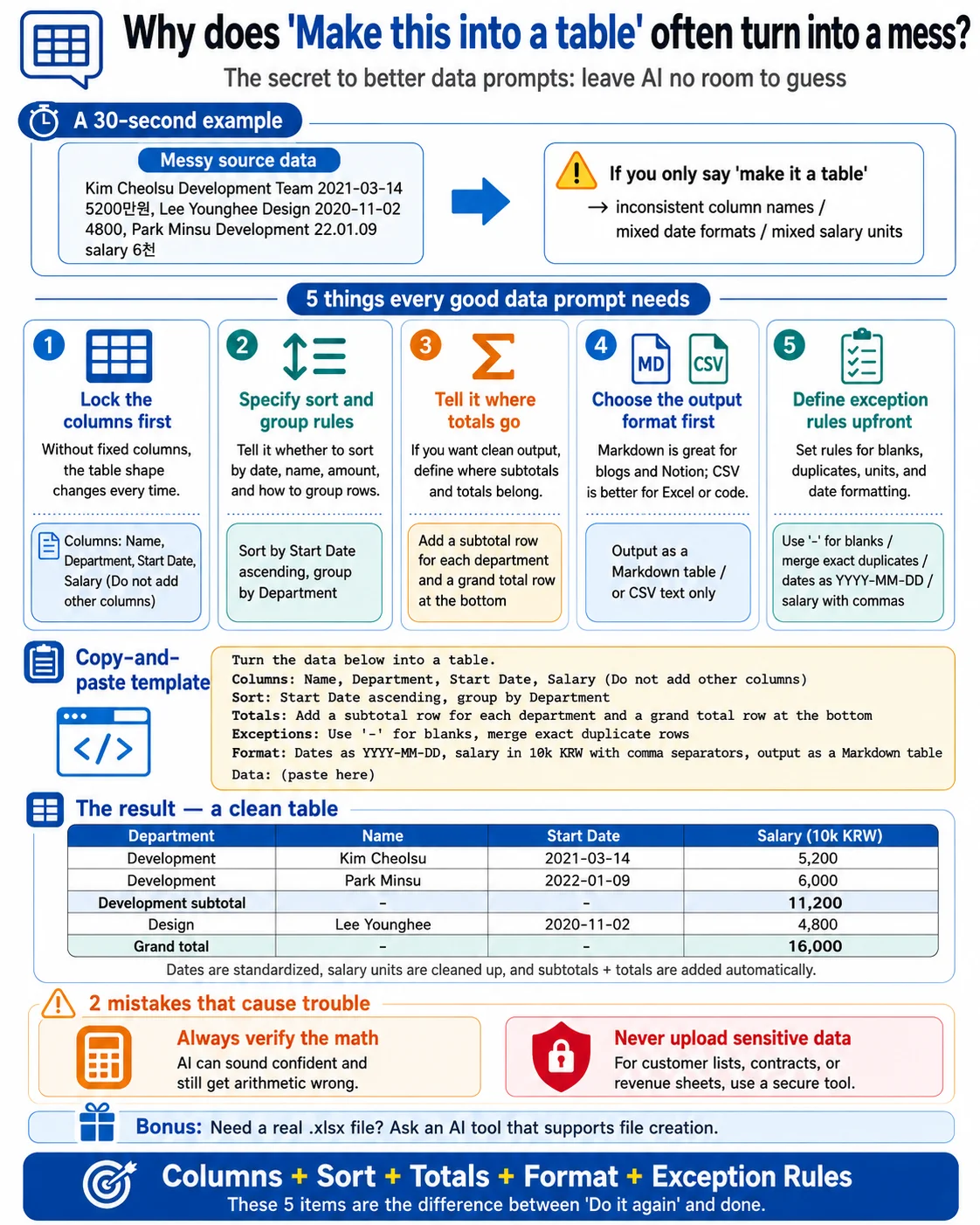
1. Nail down the columns first — no pillars, no house
The first thing to fix is the vertical pillars: the columns. Skip this and the AI picks different fields every time, so the table reshapes itself whenever you add data. Fix the columns and the rework disappears.
Prompt example: "Turn the data above into a table with exactly these four columns — [Name, Team, Start date, Salary]. Don't add any columns beyond these."
2. Sorting and grouping — say the criterion out loud
An unordered table slides right past the eye. Say whether to sort by date, amount, or name, and ask it to group by category when useful. Without a criterion, the AI just echoes the input order.
Prompt example: "Sort by start date ascending, and group the rows by team."
3. For totals, specify where they go
If the data has numbers, you can have the AI compute sums, averages, and subtotals. But stopping at "add a total" lets it drop the row in an odd spot and clutter the table. Specify the position.
Prompt example: "Add a grand-total row at the very bottom, and a subtotal row at the end of each team."
4. Say where you'll paste it — Markdown vs CSV
The same table needs a different format depending on where it lands, or you'll do the work twice. Markdown for a blog or Notion, CSV for Excel or code. Skip this and you get a pretty table you then have to convert.
Prompt example: "Output it as a Markdown table so I can paste it into a blog." — or — "Output CSV text only so I can import it into Excel."
5. Set the rules for blanks, duplicates, and units up front
When there are empty or duplicate values, the AI fills or deletes them on its own. Hand it the rules before it does. Date and number formatting fits here too.
Prompt example: "Mark empty values with '-', merge fully duplicate rows into one, format dates as YYYY-MM-DD, and standardize salary to USD with thousands separators."
All five in one prompt — a template to steal
Instead of typing five separate sentences each time, drop the rules into one block and just swap the data.
Turn the data below into a table.
- Columns: Name, Team, Start date, Salary (no columns beyond these)
- Sort: by start date ascending, grouped by team
- Totals: a subtotal row per team, plus a grand-total row at the bottom
- Exceptions: empty values as '-', merge fully duplicate rows
- Format: dates as YYYY-MM-DD, salary in USD with thousands separators, output as a Markdown table Data: (paste here)
The result — here's the table it produces
Run that template over the jumbled text at the top and you get a table you can paste as-is:
| Team | Name | Start date | Salary (USD) |
|---|---|---|---|
| Engineering | John Kim | 2021-03-14 | 52,000 |
| Engineering | Min Park | 2022-01-09 | 60,000 |
| Engineering subtotal | — | — | 112,000 |
| Design | Jane Lee | 2020-11-02 | 48,000 |
| Grand total | 160,000 |
Dates are normalized, units are consistent, and subtotals and a grand total are in place — none of which a bare "make me a table" gets you.
Two ways this goes wrong
Always check the math — AI is "confidently wrong" with numbers
The AI is brilliant at context but will state a wrong answer with full confidence when it comes to arithmetic (hallucination). Don't take the subtotals and total above on faith — eyeball them once. The prettier the table, the easier it is to trust a bad number.
Don't upload sensitive data in the first place
Customer lists, contracts, revenue figures — anything that shouldn't leave the building can end up as training data the moment you paste it into a general AI chat. If your goal is just cleanup or summarizing, a tool that processes without sending the file out is the safer path.
FileKeeps's AI file analysis and PDF Intelligence don't upload your original file — they process it in your browser. Handle sensitive tables this way.
Bonus: when you need a real .xlsx file
If you need more than an on-screen Markdown table — an actual Excel file with live formulas and formatting — ask Claude to "turn this table into an .xlsx file and give me a download link," and it will generate the real file.
The one-line takeaway
Bake these five into your prompt: columns, sorting, aggregation, format, and exception rules. That's the difference between "make me a table" and a table you just paste and forget.