How to Automatically Generate Word, Excel, PPT, and PDF with Claude: 4 Essential Document Skills
Learn how to automatically create and edit office documents using Claude's official document skills (docx, xlsx, pptx, pdf), along with best practices for handling sensitive files securely.
When using AI for work, it often ultimately leads to document tasks. This usually looks like organizing reports in Word, inputting data into Excel, creating presentation materials in PowerPoint, and finally distributing them as PDFs. Claude offers several document-processing features tailored for different document formats to assist with these tasks. It can handle the following four representative formats:
- Word documents:
.docx - Excel spreadsheets:
.xlsx - PowerPoint presentations:
.pptx - PDF documents:
.pdf
Going far beyond simply generating content, you can automate tasks such as reading or modifying existing documents, organizing tables and formulas, building slide structures, or splitting and merging PDFs. However, as convenient as it is, there is one thing you must always consider:
When you pass this document to the AI, where is the file processed?
If it's public data, it might not be a major issue, but sensitive documents like contracts, pay stubs, resumes, and medical records are an entirely different story.
In this post, we will break down which tasks Claude's core document-processing features are best suited for, and what you need to keep in mind regarding privacy when using them in practice.
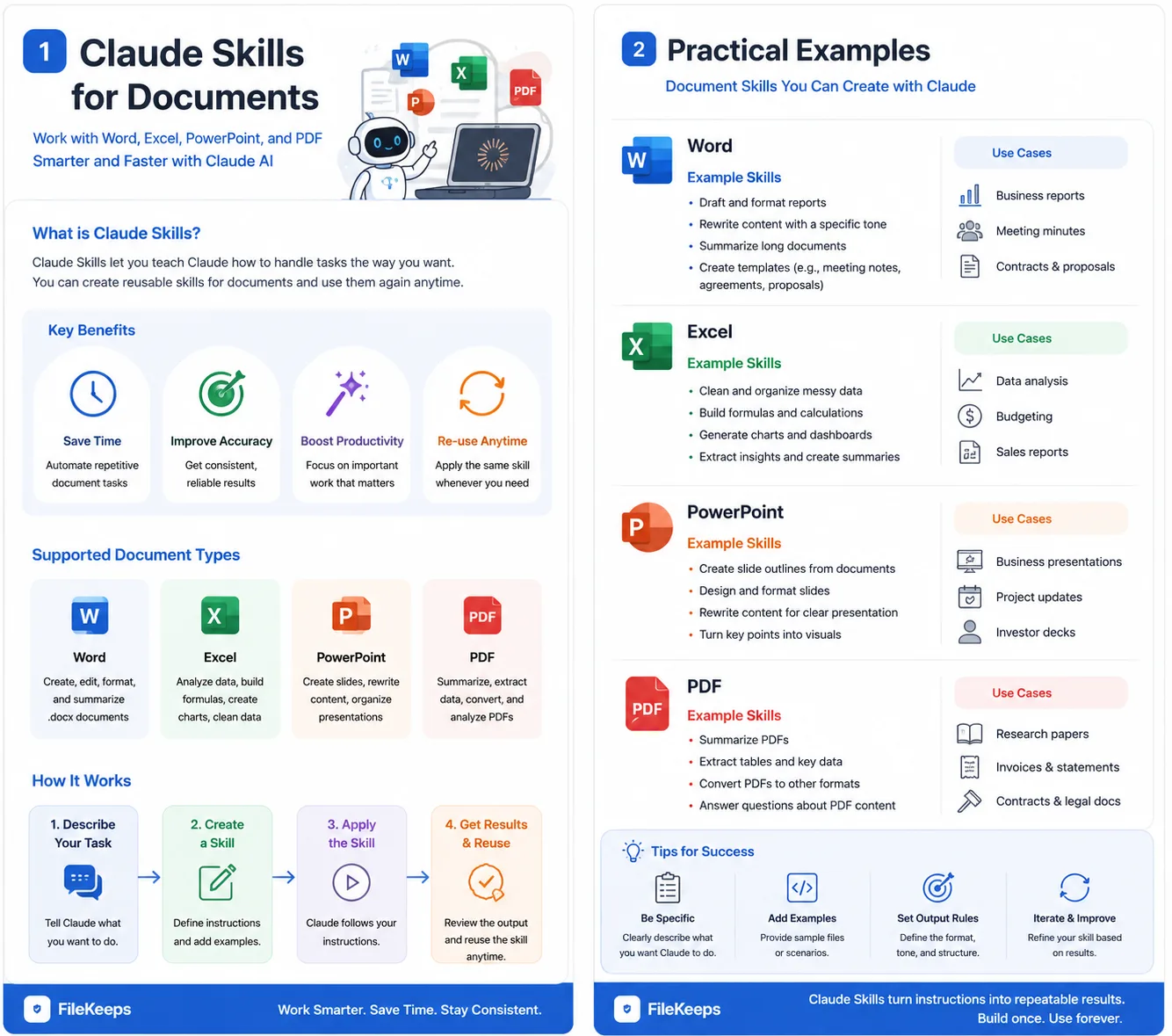
4 Claude Document Skills
The easiest way to understand document automation is to break it down by file format.
| Skill | File Format | Representative Tasks |
|---|---|---|
docx | .docx | Writing, editing, and reviewing Word documents |
xlsx | .xlsx | Table creation, formulas, data organization |
pptx | .pptx | Presentation creation and editing |
pdf | .pdf | Text extraction, merging, splitting, PDF generation |
While the role of each feature may look similar, their actual applications in day-to-day work vary quite a bit.
1. docx — Word Document Creation and Editing
Word documents are one of the most frequently used formats in the corporate world, such as for reports, contract drafts, proposals, and business documents. By utilizing Claude, you can automate not only creating new Word documents but also reading and modifying existing ones. For example, you can make requests like this:
Please revise this report to have a more professional tone.

Maintain the heading structure,
reduce redundant sentences,
and organize the revisions so they are easy to review.
You can also use it for tasks such as:
- Drafting reports
- Refining sentences in existing documents
- Reorganizing document structures
- Maintaining table and heading styles
- Adding comments
- Making revisions for review
- Summarizing and rewriting document content
This is especially useful when you need to organize content while preserving the format of an existing Word file as much as possible.
Practical Usage Example
Let's say you have a draft of an internal report.
Please review the Word document below and edit the sentences to sound natural.

Conditions:
- Maintain the title and numbering system
- Do not change the meaning
- Break down overly long sentences
- Use an official report tone
- Organize the revisions so they are clearly visible
If a person had to do this manually, they would have to read through the entire document and fix things one by one, but using AI can significantly reduce the time spent cleaning up drafts.
2. xlsx — Excel Tables and Data Analysis
Excel automation is particularly high in practical utility. This is because you can connect it not just to create simple tables, but also to organize data, add formulas, and analyze calculation results. For example, you can make requests like the following:
Please organize this sales data into Excel.

- Monthly sales totals
- Growth rate compared to the previous month
- Sales share by product
- Grand total
- Include formulas for growth rates
In this case, you aren't just making a simple table; you can build a spreadsheet that includes formulas capable of actual calculations.
Tasks Well-Suited for Excel
Repetitive tasks like the following are especially great for automation:
- Organizing sales data
- Organizing expense details
- Creating budget tables
- Managing schedules
- Inventory management
- Organizing customer lists
- Automatically inputting calculation formulas
- Data summarization
- Simple statistical analysis
For example, if you have hundreds of lines of transaction history, you can request:
Group the date-based data by month,
find the sales totals by product,
and create an Excel file that calculates the month-over-month change rate.
Using Formulas is More Important Than Simple Tables
There is one important point when automating Excel documents. It is much more useful to include formulas alongside the results rather than just inputting final values. For instance, if you simply enter a grand total as a plain number, you will have to recalculate it whenever the source data changes. On the other hand, if you include a formula like this:
=SUM(B2:B20)
Excel will automatically update the results even if the data changes. Therefore, for documents you plan to use repeatedly, it is best to build them with a structure that includes formulas rather than static calculation results whenever possible.
3. pptx — Creating PowerPoint Presentations
Creating presentation materials takes a lot more time than you might think. That's because you have to consider not just organizing the content, but also:
- Slide sequence
- Headings
- Body length
- Table placement
- Image positioning
- Overall design
all at once. By utilizing Claude, you can first build the overall slide structure and automatically organize the content that will go on each page. For example, you can make a request like this:
Based on the report below, please create a 10-slide presentation.

Structure:
1. Title
2. Market Status
3. Pain Points
4. Core Data
5. Solutions
6. Key Features
7. Competitiveness
8. Expected Effects
9. Implementation Schedule
10. Conclusion
This is especially useful when you need to condense long, document-format materials into short, presentation-ready messages.
Situations Where PPT Automation is Useful
Examples of such tasks include:
- Business proposals
- Internal reporting presentations
- Product introduction materials
- Pitch decks
- Educational slides
- Project result reports
If you already have an existing Word report or Markdown document, you can request:
Turn this document into a PowerPoint presentation for executive reporting.

Put only one core message per slide,
and shorten long sentences.
The most realistic and efficient approach is to leave the heavy lifting of drafting to the AI and have a human polish the final design and messaging.
4. pdf — Reading, Splitting, Merging, and Generating PDFs
PDFs are the format most commonly used for final distribution documents. However, modifying them or extracting data is often more cumbersome than with Word or Excel. Using PDF-related features, you can automate tasks such as:
- Extracting PDF text
- Extracting tables
- Merging multiple PDFs
- Splitting PDF pages
- Extracting specific pages
- Generating new PDFs
- Processing PDF forms
Let's say you have a 100-page report.
Please extract only pages 20 to 35 from this PDF
and make them into a separate PDF file.
You can also combine multiple files into one.
Contract.pdf
Attachment.pdf
ReviewComments.pdf

Please combine these three files into a single PDF in that order.
When Extracting Tables from PDFs
Situations where you need to move data from a PDF back into Excel also happen frequently. For example, if there is a sales table inside a monthly report PDF, you can work on it like this:
Extract the sales table inside the PDF
and organize it into an Excel format.
However, depending on how the PDF was created, text and table structures can vary, meaning not all files will be processed identically. If it's a scanned PDF, OCR may be required, and it's best for a human to double-check complex tables.
Using the Four Document Features Together
In actual work, you will often connect multiple document formats rather than using just one. For instance, think about the task of reporting monthly performance. First, you organize the raw data in Excel.
Raw Data
    ↓
Excel Analysis
Then, you write the results into a Word report.
Excel
    ↓
Word Report
Next, you create a PowerPoint for executive presentations.
Word
    ↓
PowerPoint
Finally, you convert it into a PDF for distribution.
PowerPoint
    ↓
PDF
Looking at the overall flow, it looks like this:
Raw Data
    ↓
xlsx
Data organization and analysis
    ↓
docx
Report creation
    ↓
pptx
Presentation production
    ↓
pdf
Final distribution
When this kind of structure is established, it becomes possible to automate the entire workflow rather than just document generation itself.
The Real Benefits of Document Automation
The advantage of document automation goes beyond simply creating documents quickly. Rather, its greater advantage lies in maintaining a consistent format for repetitive tasks. Suppose you write a monthly report. If a person creates it manually, every time:
- Table positions change,
- Expression methods change,
- Items get omitted,
- Calculation errors can occur.
On the other hand, if you set fixed rules and create documents using AI, it becomes easy to apply the same structure repeatedly. Especially when combined with Claude Skills, you can establish the work procedure itself as a repeatable process:
Every month, create an Excel file in this format,
create a Word report with the same structure,
and summarize it into a 10-slide PPT.
When structured this way, AI stops being merely a tool for writing sentences and becomes a tool that automates the actual document production process. However, as the scope of automation grows, checking privacy and where files are processed also becomes crucial. Ultimately, good document automation must satisfy two things simultaneously: Minimize repetitive tasks as much as possible, and transmit sensitive information only to the necessary extent. When starting Word, Excel, PowerPoint, and PDF automation, don't just look at the features. It is wise to build the habit of checking:
"What kind of information is contained in this document, and where is this file being processed?"
This version is restructured to be read in the order of: technical explanation → actual work examples → comparison of 4 formats → overall automation flow → privacy protection standards. Not uploading sensitive files in the first place is the most foolproof defense. Fortunately, many document tasks can be done right inside your browser.
- PDF merge, split, compress, page numbers, passwords → PDF Tools
- PDF summarization and Q&A (text detection) → PDF Intelligence
- Document summarization and Q&A → AI File Analysis
Summary: Use Claude document skills quickly for public documents, and browser on-device processing safely for sensitive documents — divide your tools based on the nature of the task.