How to Shrink a Large PDF in One Go — Without Quality Loss or Leak Worries
Practical ways to slim down heavy PDFs that keep hitting email-attachment or upload limits.
When you attach a carefully prepared proposal, financial report, or design portfolio to an email for a client or an agency, running into a warning that reads "The file exceeds the size limit (e.g., 10MB/25MB)" can be a frustrating surprise.
That's because high-resolution images, scanned documents, and needlessly duplicated embedded fonts pile up, ballooning a PDF from tens to hundreds of megabytes (MB).
Most people just type 'reduce PDF size' into a search box and, without much thought, hastily upload their document to whichever free conversion site appears at the top. But for organizations where original quality and document security are everything — corporate legal teams, marketing teams, architecture and engineering firms, and schools and public institutions — this habit can be highly risky.
A confidential document or an unreleased design project uploaded with a single click can lead to an internal security-policy violation (a data breach risk) or an external leak.
Today, we'll walk through the principles and practical tips for safely reducing PDF size inside your web browser while minimizing quality loss — without sending a single byte of your file to an external server.
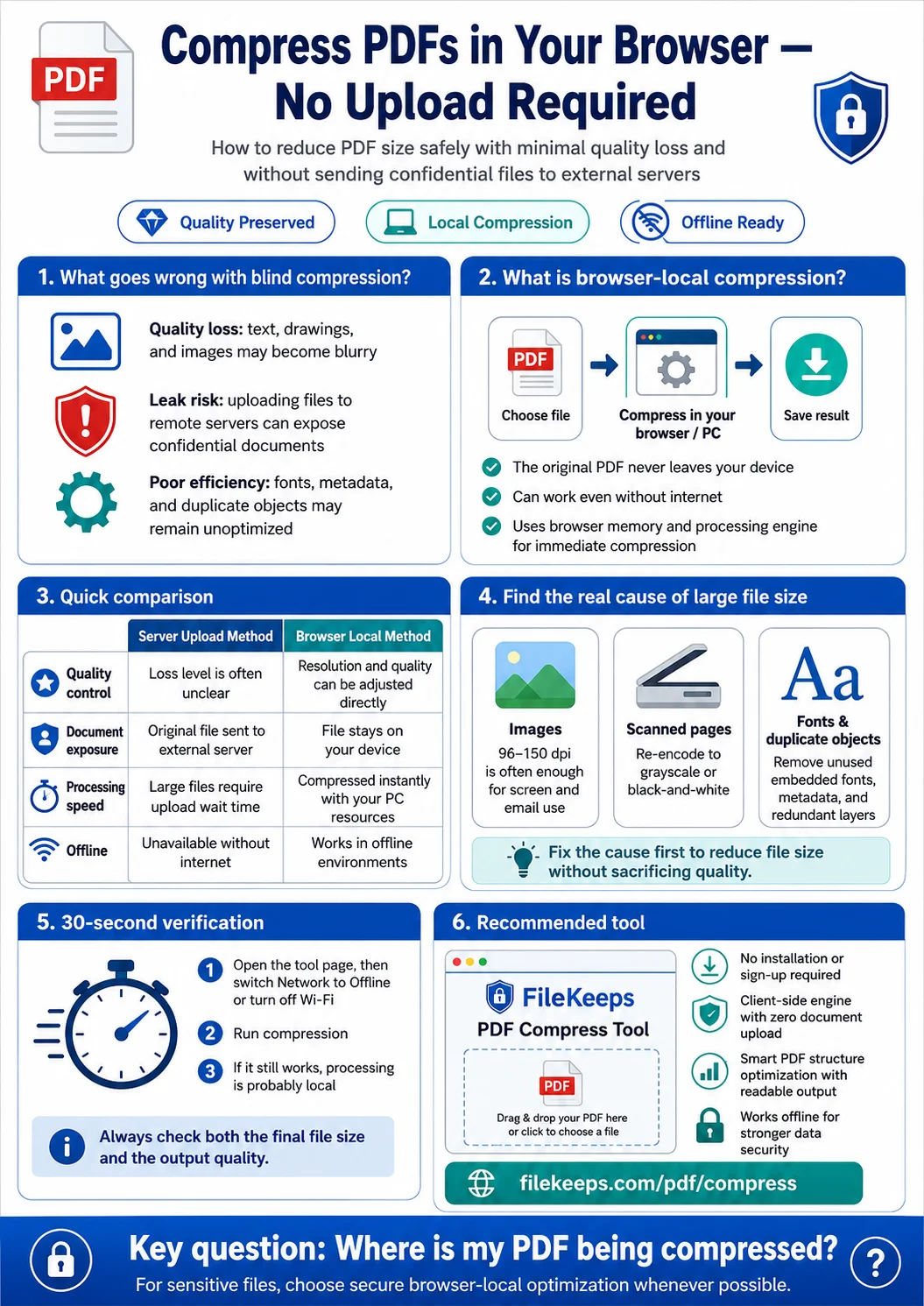
1. Three Problems That Arise from Blind Compression
Reach for a run-of-the-mill online PDF compressor without a second thought, and you'll often land in these awkward situations.
- Jagged text and image quality (visible degradation): Cranking up the compression rate just to shrink a file can blur the fine dimension lines on a drawing or the product photos in a portfolio, leaving the recipient unable to read them.
- Leak risk from sending documents to an external server: When you upload a document to a remote server to compress it, unreleased projects can leak through network eavesdropping or files left behind on the server.
- A buildup of unnecessary structural data: Beyond image compression, unless you clear out unused embedded fonts, metadata, and duplicate layers, efficient size reduction is hard to achieve.
2. What Is 'Browser-Local (Client-Side)' Compression That Skips the Server?
The clean answer to these problems is "client-side PDF processing technology." With nothing transferred over the internet, it uses only your computer's memory (RAM) and the browser's computation engine to rearrange the PDF's structure and optimize image resolution on the fly, right on your own machine.
[Compression: Server Method vs. Browser-Local Method]
| Comparison | Server-Upload Method | Browser-Local Method |
|---|---|---|
| Quality control | Server re-encoding makes the amount of loss opaque | Compress while directly adjusting resolution and quality |
| Document exposure | The original is sent to an external server | The file never leaves your device |
| Processing speed | The bigger the file, the longer the upload wait | Compresses using your PC's resources, with no waiting |
| Offline | Impossible once the internet drops | Works even in an offline environment |
3. Find the 'Cause' of the Bloat First, and You'll Sacrifice Less Quality
Blindly cranking up the compression rate only mangles the quality. Pinpointing why the file grew and touching only that part is the key to minimizing quality loss.
If the Cause Is 'Images' — Lower the Resolution
The most common case by far is photos and screenshots placed at an excessive resolution. For on-screen or email use, 96–150 dpi is plenty; unless the file is headed for print, anything beyond that just eats up space. Simply lowering the image resolution to a reasonable level already shrinks the size considerably.
If the Cause Is a 'Scan' — Re-encode in Black-and-White or Grayscale
Text-centric scanned documents are often stored in color. Re-encoding them in grayscale or black-and-white can keep them readable while cutting the size to less than half.
If the Cause Is 'Fonts or Duplicate Objects' — Tidy Up the Structure
Sometimes the file is large because unused embedded fonts, duplicate layers, and leftover metadata have piled up. Since tidying the structure alone — with no image compression — already reduces the size, it's worth a try before you touch the quality at all.
4. 💡 Tip: Test Offline + Confirm the Size Actually Dropped
Check two things at once: that the compression tool doesn't route through a server, and that the result is worth using.
- After opening the page, press
F12and set the Network tab to 'Offline,' or switch off Wi-Fi. - Run the compression in that state. If it finishes even while you're offline, it was processed inside your browser.
- Finally, look at the resulting file size and quality together. If it came out too blurry, lower the compression strength; if the size is unchanged, re-check the cause (images, scans, or fonts).
🛡️ A Recommended Tool That Handles Both Quality and Security: FileKeeps
If you want to reduce PDF size safely — with no separate software to install, no sign-up, and zero server uploads — make use of the FileKeeps guide and its free tools.
- Go straight to the PDF compression tool: https://filekeeps.com/pdf/compress
- Key advantages:
- A server-transfer-free, client-side processing engine that never sends even a single byte of your document to an external server
- Smart PDF structure optimization that efficiently trims size while keeping documents readable
- A robust data-security setup that works fully offline
Company secrets, personal data, unreleased designs — the next time you're holding a large PDF that contains them, don't upload it to an external server on a whim. Use FileKeeps to optimize it safely and quickly, right inside your browser!