The Complete Guide to Image Formats: WebP, PNG, and JPG Differences and How to Use Each in Practice
How the three main web image formats differ and how to pick the best one for each situation—plus a way to convert them right in your browser.
Have you ever found yourself unsure which image format to use when building a website, putting together marketing content, or sharing your design work?
"Should I just upload everything as high-quality PNG?" "Isn't a small, lightweight JPG always the best choice?" "And what exactly is WebP, the format I keep seeing everywhere these days?" Choosing the wrong format for the job often leads to problems like a slower-loading website, degraded image quality, or an image server that runs out of space.
Today, we'll break it all down—from the structural differences between each format to clear, practical criteria for choosing between WebP, PNG, and JPG that professionals can apply right away.
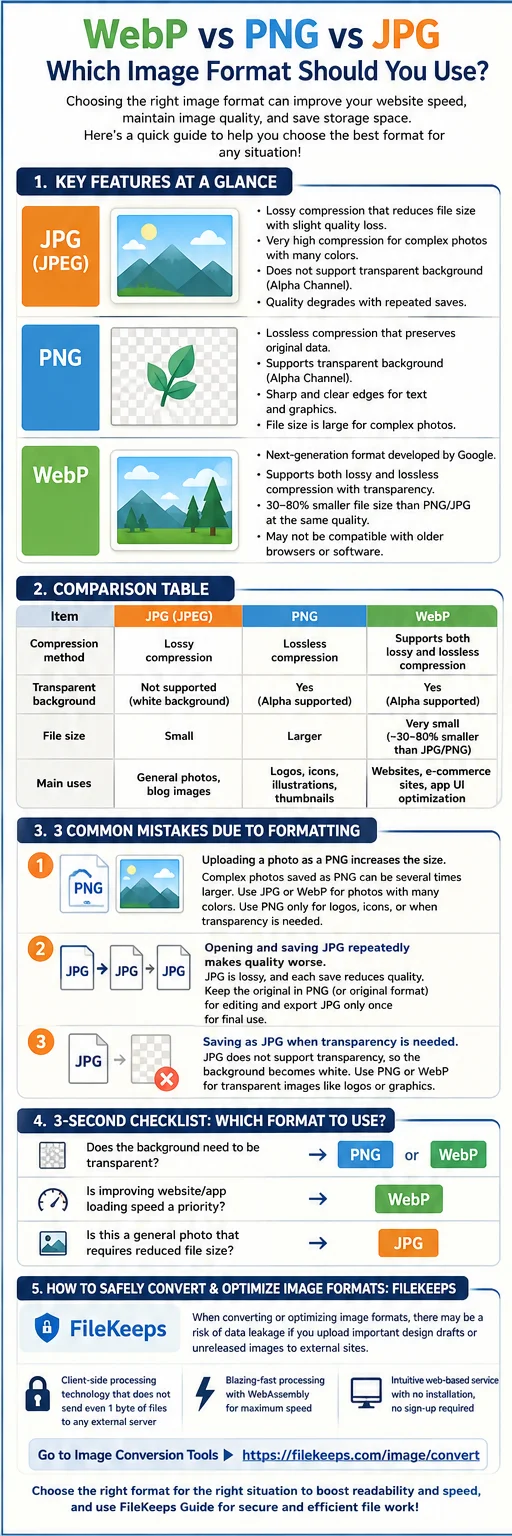
1. The Big Three Image Formats: Key Features at a Glance
Each image format uses a completely different compression method and supports a different set of features.
🖼️ JPG (JPEG) — The Most Common Lossy Compression Format
- What it is: A "lossy compression" format that dramatically reduces file size, though some minor quality loss occurs during compression.
- Strengths: Even colorful, complex photos compress extremely well, keeping file sizes small.
- Weaknesses: It doesn't support transparent backgrounds (an alpha channel), and quality gradually degrades each time the image is re-compressed.
🎨 PNG — The Format for Transparency and High-Quality Originals
- What it is: It uses "lossless compression," which preserves the original data exactly as it is.
- Strengths: It supports transparent backgrounds (cutout images), and the edges of text and graphics stay crisp instead of turning blurry.
- Weaknesses: For complex, real-world photos, file sizes can be several times larger than JPG.
⚡ WebP — The Next-Generation Web Image Format from Google
- What it is: A modern format that brings together JPG's high compression with PNG's lossless quality and transparency support.
- Strengths: At the same quality, it's dramatically smaller than PNG or JPG—by 30 to 80% or more—which greatly speeds up web loading times.
- Weaknesses: It may not be compatible with older browsers or some legacy software.
2. [Comparison Table] Features and Characteristics by Format
| Category | JPG (JPEG) | PNG | WebP |
|---|---|---|---|
| Compression | Lossy | Lossless | Both lossy and lossless |
| Transparency | Not supported (background filled white) | Supported (alpha) | Supported (alpha) |
| File size | Small | Large | Very small (~30% smaller than JPG) |
| Best for | Everyday photos, blog attachments | Logos, icons, cutout images | Websites, online stores, app UI optimization |
3. Three Common Mistakes People Make with Formats
Mistake 1. Uploading photos as PNG and blowing up the file size
Saving a complex, real-world photo as PNG can inflate its size several times over. Color-rich images like photos and photo spreads are better suited to JPG or WebP. Use PNG when the colors are simple—like logos and icons—or when you need a transparent background.
Mistake 2. Repeatedly opening and re-saving a JPG → quality keeps eroding
Every time you save a JPG, another round of lossy compression piles on. Keep the master copy you'll edit repeatedly in PNG (or its original format), and export to JPG just once, only for the final release.
Mistake 3. Saving as JPG when you need a transparent background
JPG doesn't support transparency (alpha), so the background gets filled in with white. Cutout images and logos need to be saved as PNG or WebP for the background to show through. Keep in mind that WebP may not open in very old browsers or some editing software, so factor in compatibility when you're distributing files broadly.
4. 💡 Tip: A 3-Second Checklist for Deciding Which Format to Use
If you're not sure which format to save or convert to, just check these three things!
- Does the background need to be transparent? ➔ PNG or WebP
- Is faster website/app loading your top priority? ➔ WebP
- Is it an everyday photo where you just need a smaller file? ➔ JPG
🛡️ How to Convert and Optimize Image Formats Safely: FileKeeps
When converting or optimizing image formats, carelessly uploading an important design mockup or unpublished photos to an outside conversion site can create a risk of your images leaking. The FileKeeps Guide Center offers a range of valuable IT productivity tips, along with an environment where you can work with images safely inside your web browser—no server upload required.
- Go to the image converter: https://filekeeps.com/image/convert
- Key advantages:
- Client-side processing with no server transmission, so not even a single byte of your file is sent to an outside server
- Blazing-fast WebAssembly-based computation that maximizes the speed of image and document work
- An intuitive front-end service with no software to install and no sign-up required
Choose the image format that fits the job to boost both clarity and speed, and for file work that needs to stay private, handle it safely with the help of the FileKeeps guide!