Merging and Splitting PDFs Entirely in Your Browser, No Upload Required
How to combine several PDFs into one or pull out only the pages you want, processed safely inside your browser without uploading your files to a server.
In the course of your working life, you frequently run into moments where you have to combine several PDF contracts into one, or pull just a specific section out of an annual report that runs well past 100 pages.
So how do you usually handle it? More often than not, you type 'merge PDF' into a search box and, without a second thought, upload your file to one of the free conversion sites at the top of the results.
But for organizations where document security is everything, such as corporate legal teams, HR departments, accounting firms, and the financial sector, this habit can be more damaging than it looks. A file you upload with a single click can end up as a violation of internal security policy (a data breach).
Today, we'll lay out the underlying principle, along with the practical know-how, for merging and splitting PDFs safely and cleanly inside your web browser, without sending a single byte of your file to an external server.
1. Why That 'Upload' Button You Click Without Thinking Is Risky
Most of the free online PDF tools we commonly use work in much the same way.
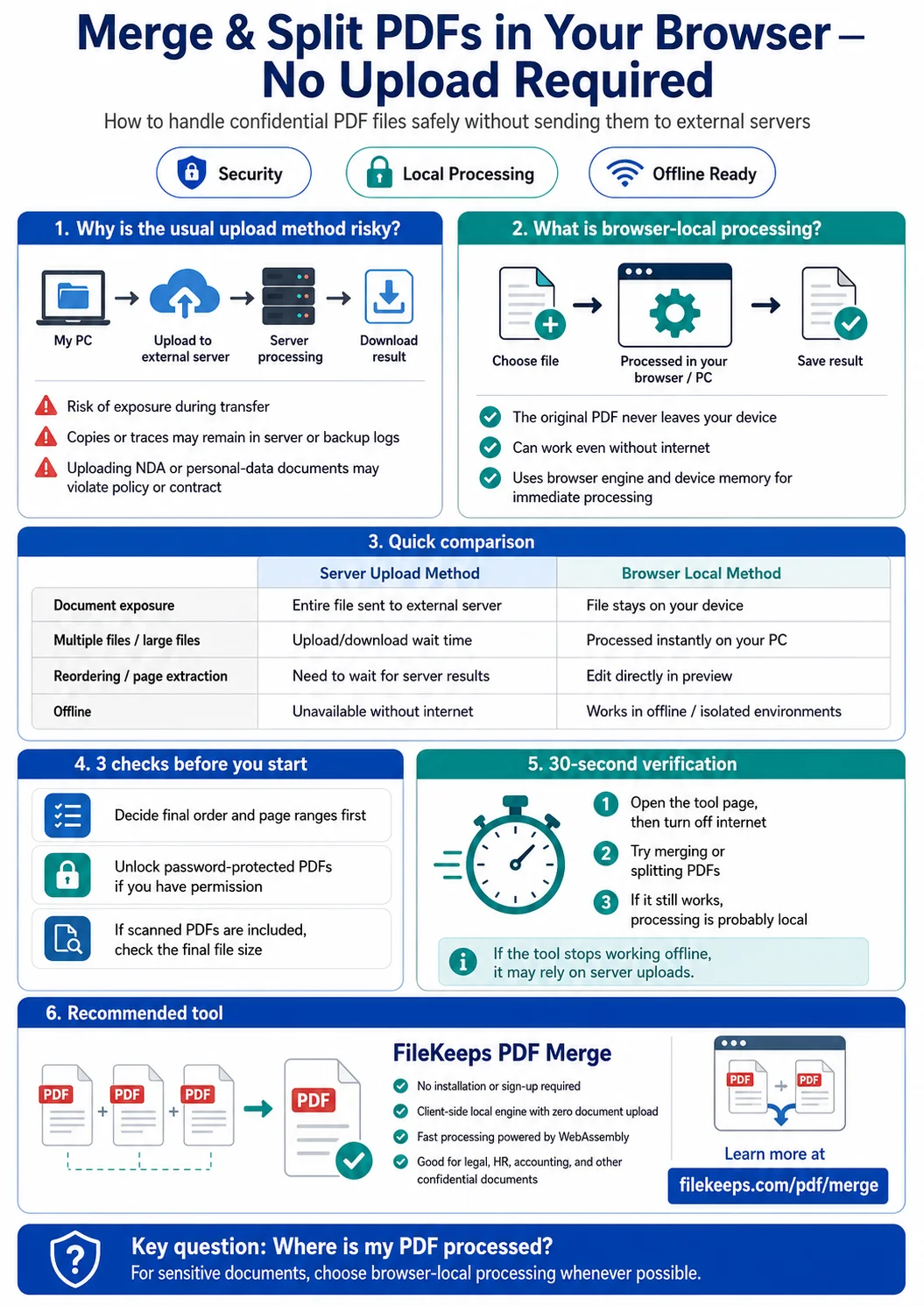
The conventional flow: Your PC ➔ transfer to an external cloud server ➔ PDF processing on the server ➔ download the converted file
This process introduces a few uneasy security risks.
- Risk of interception in transit: As the file travels across the internet, eavesdropping or data leakage becomes possible.
- Residual data on the server: Even when a site says the file is 'automatically deleted after processing,' traces can linger on backup servers or in temporary logs, so it's hard to feel entirely reassured.
- Legal and contractual issues: For confidential documents covered by data protection law (GDPR) or a non-disclosure agreement (NDA), uploading to an external server can itself amount to a breach of contract.
2. What Is 'Browser-Local (Client-Side)' Processing With No Server Transfer?
To solve these problems, IT teams in the field have increasingly been adopting 'client-side PDF processing' technology. To put it without the technical jargon: no matter whether you have an internet connection, it's a way of editing documents on the fly using only your computer's memory (RAM) and the browser engine.
[Merge and Split: Server Method vs. Browser-Local Method]
| Comparison | Server-Upload Method | Browser-Local Method |
|---|---|---|
| Document exposure | The entire original is sent to an external server | The file never leaves your device |
| Multiple / large files | Wait through an upload and download for every file | Process several at once, instantly, on your own PC |
| Reordering / page extraction | Hand it off to the server and wait for the result | Reorder and extract right in the preview |
| Offline | Impossible once the connection drops | Works even in air-gapped or offline environments |
3. Three Things Worth Knowing Before You Merge or Split
Decide the Order and Page Ranges First
When you're merging several files, settle on the final order ahead of time; when you only need certain parts, note the ranges you'll need (e.g., pages 3–5, page 10). Sorting this out in advance makes the work go much faster. With the browser-local method, reordering pages or picking out only the ones you want in the preview still never sends the original back and forth to a server.
Unlock Password-Protected PDFs First
A PDF that prompts for a password when you open it can't be merged or split. If you have legitimate rights to the document, remove the lock first. When you do this inside the browser as well, the file never leaves your device.
Check the Size When Scans Are in the Mix
When heavy, photo-like scanned PDFs are part of the batch, the merged result can swell to tens of megabytes. If email attachment limits are a concern, it's safer to run the merged file through a size-reduction step one more time.
4. 💡 Tip: Confirm in 30 Seconds That Nothing Is Really Being Uploaded
Curious whether the PDF tool you're using truly runs only inside the browser? Cut off the internet and put it to the test.
- With the tool's page open, turn off Wi-Fi (or unplug the LAN cable). (Or press
F12→ the Network tab → 'Offline.') - In that state, try running a merge or split.
- If the resulting PDF is created just fine even though your connection is down, then the file was processed on your device rather than sent out.
If, on the other hand, it stalls while offline, there's a good chance it works by uploading your file somewhere.
🛡️ A Recommended Tool That Finishes the Job in the Browser, No Upload: FileKeeps PDF Merge
If you'd like to merge and split PDFs safely with no separate program to install, no sign-up, and zero server uploads, we recommend the FileKeeps PDF Merge service.
- Web address: https://filekeeps.com/pdf/merge
- Key points:
- A server-free, client-side local engine that never sends even a single byte of your document to an external server
- WebAssembly-based, ultra-fast processing that handles even large PDF files without stutter
- Strong data security that keeps working even when you're offline
For confidential company documents or important PDFs that contain personal data, stop uploading them to an external server out of habit, and process them safely and quickly inside your browser with FileKeeps PDF Merge!