Auto-Generate Subtitles for Video & Audio: Free, In-Browser, No Server Upload
How to pull captions from audio and video for free, right in your browser with Whisper — plus accuracy tips. Local-first, so your audio stays on your device by default.
There was a time when pulling the text out of a lecture recording, a long meeting, or an interview meant hours of typing it all out by hand. Thanks to on-device AI, you can now just open a browser and have it turn speech into text and build captions for you.
This guide walks through how to pull captions (transcripts) out of audio and video right in your browser, for free.
1. The core tech behind auto-transcription: the Whisper model
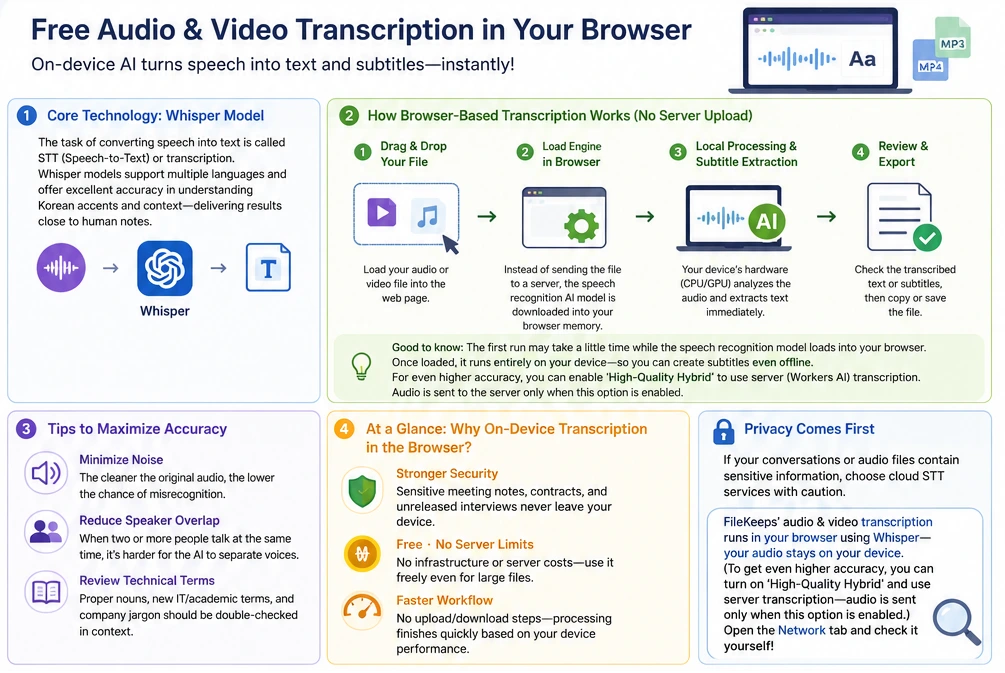
Turning spoken audio into text is called speech-to-text (STT) or transcription. Recognition used to be poor — often missing pronunciation and context. That changed when OpenAI's Whisper family of models arrived. On top of strong multilingual support, its accuracy on accents and context reasoning jumped high enough to get results close to something a person typed by hand.
2. How "in-browser transcription" works without a server upload
Most web caption services upload your audio file (large MP3s, MP4s) to their servers, then hand back just the text. That adds transfer-time overhead and, more importantly, isn't free of security and privacy concerns.
FileKeeps's local transcription works differently.
- Drag & drop the file: Load an audio or video file onto the page.
- Load the engine in the browser: Instead of firing the file off to a server, it downloads the speech-recognition AI model into your browser's memory.
- Compute locally and extract: It uses your device's hardware (CPU/GPU) to analyze the audio and pull out the text.
- Review and export: Check the transcribed text and caption data, then copy it or save it to a file.
📌 Worth knowing — The first run takes a moment to load the speech model into the browser. Once loaded, it runs entirely on your device, so caption generation even works offline with no internet. If you want higher accuracy, you can turn on "high-quality hybrid" yourself to use server (Workers AI) transcription — audio is sent only when you enable that option.
3. Practical tips to maximize accuracy
Even a great model is only as good as the source it's given. For cleaner captions, check these three things.
- Minimize noise: The less background noise and echo in the original, the sharper the drop in misrecognition.
- Reduce overlapping speakers: When two or more people talk over each other, the AI struggles to separate the voices.
- Proof the jargon: Proper nouns, the latest IT/academic terms, and internal company terms are worth a quick visual pass against the context.
💡 At a glance: why "in-browser, on-device transcription"?
- Strong security: When it's processed in the browser, sensitive meeting notes, contract-related audio, and unreleased interviews don't leave your device.
- Free · no server size cap: Even large videos incur no server infrastructure cost, so you can use it without limits.
- Fast: With no upload/download step, the compute finishes as fast as your device allows.
🔒 If data privacy comes first
If a conversation or audio file contains sensitive information, choose cloud-based STT carefully. If you'd rather keep the audio in and pull captions inside the browser —
FileKeeps's audio/video transcription builds captions in your browser with Whisper by default — the audio stays on your device. (Want more accuracy? Turn on "high-quality hybrid" yourself to use server transcription; only then is the audio sent.) Curious? Open the Network tab and check for yourself.